AI Video · 11 min read
Best Image to Video AI in 2026: Tools, Free Plans, Tips
Compare the best image to video AI tools of 2026: Veo, Kling, Hailuo, Runway and more, with free plan limits, clip lengths and a checklist for picking one.
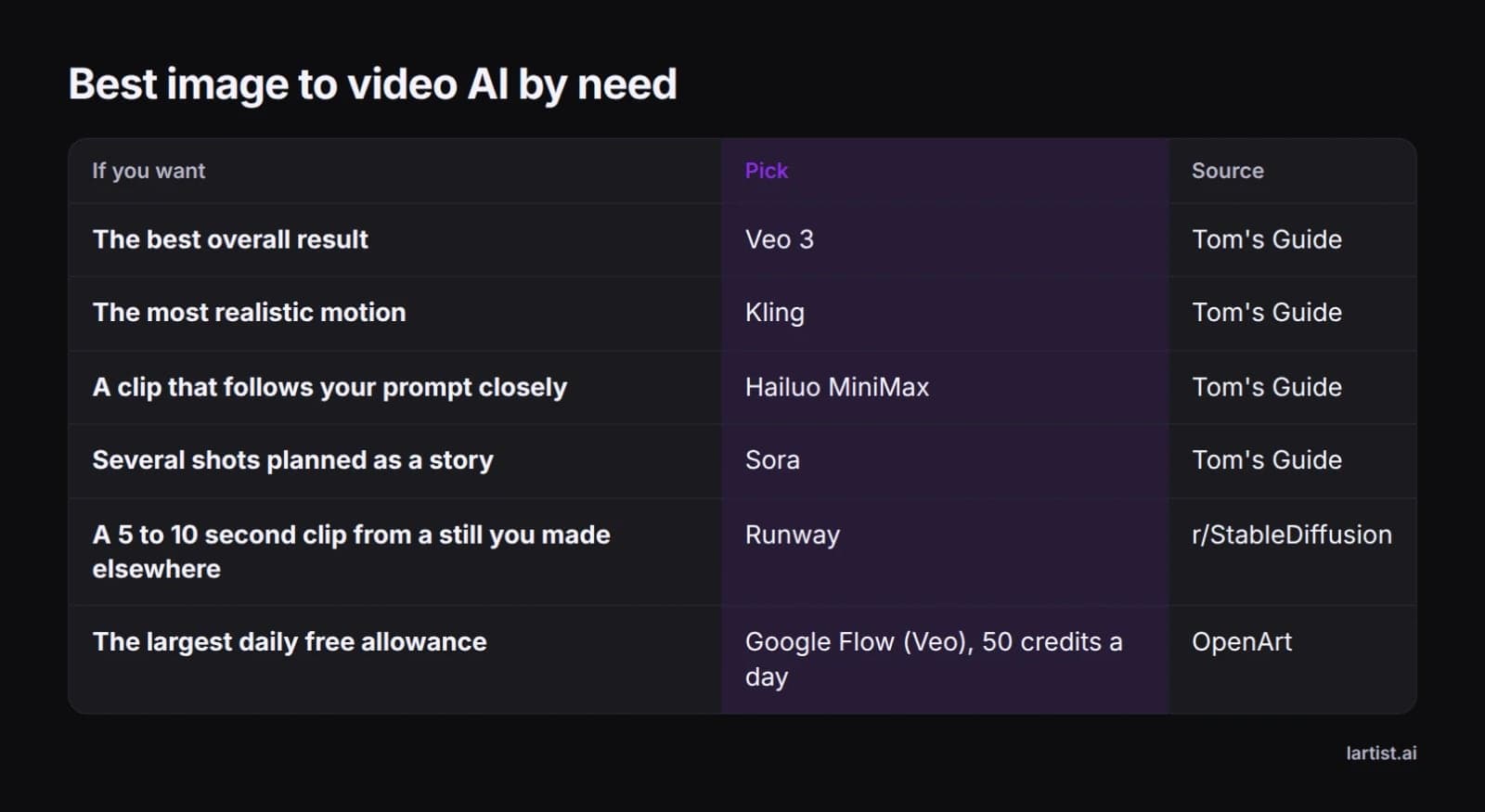
The best image to video AI depends on what you want the clip to do. Here is what the top reviews pick:
- Best overall: Veo 3 from Google, Tom's Guide's top pick after 200 hours of testing.
- Best for realistic motion: Kling (Tom's Guide).
- Best for following your prompt: Hailuo MiniMax (Tom's Guide).
- Best for storyboarding: Sora (Tom's Guide).
- Best for animating a still you made elsewhere: Runway. The common r/StableDiffusion workflow makes the image in Midjourney or DALL·E, then turns it into a 5 to 10 second clip in Runway.
- Largest daily free allowance: Google Flow (Veo), at 50 credits a day (OpenArt).
The best image to video AI, by what you need
Most free plans give you 5 to 10 seconds per clip (OpenArt). So the real choice is which tool makes the most of those seconds for your kind of picture.
These tools change quickly. Tom's Guide published its review in July 2025, when it tested Veo 3 and Kling 1.6. By August 2026, OpenArt was already listing Veo 3.1, Kling 3.0 and Sora 2. Before you judge a tool by an older review, check which model version it runs today.
This guide covers the tools the top reviews name and what their free plans give you. It then shows you how to judge any tool yourself, including Lartist, with a checklist, a settings guide and a method for writing motion prompts.
What an image to video AI actually does
You upload one still image and describe the motion you want. The tool then generates a short clip that starts from your picture. The waves start rolling, the hair moves in the wind, or the camera slowly pushes in.
OpenArt gives the plain technical version. Video diffusion models compress frames into a compact "latent space", then use your image and your prompt to generate the motion. Your picture sets what the scene looks like, and the model adds what happens next.
The technology is young. Tom's Guide traces it back to February 2023, when Runway released Gen-2, the first commercially available AI video generator. Pika 1.0 followed soon after, along with several services built on Stable Video Diffusion.
Not every "image to video" tool works this way, so it helps to know which kind you need:
- Template tools. Some tools build a video from ready-made layouts rather than animating one picture. Flixier says Vidnoz, for example, offers over 1,000 templates on its free plan. These suit promo videos and photo montages.
- Model-based generators. Veo, Kling, Runway, Luma Dream Machine and Vidu generate new motion inside a single image. They are what you need if you want a still picture to come alive.
Best image to video AI tools compared
Veo (Google)
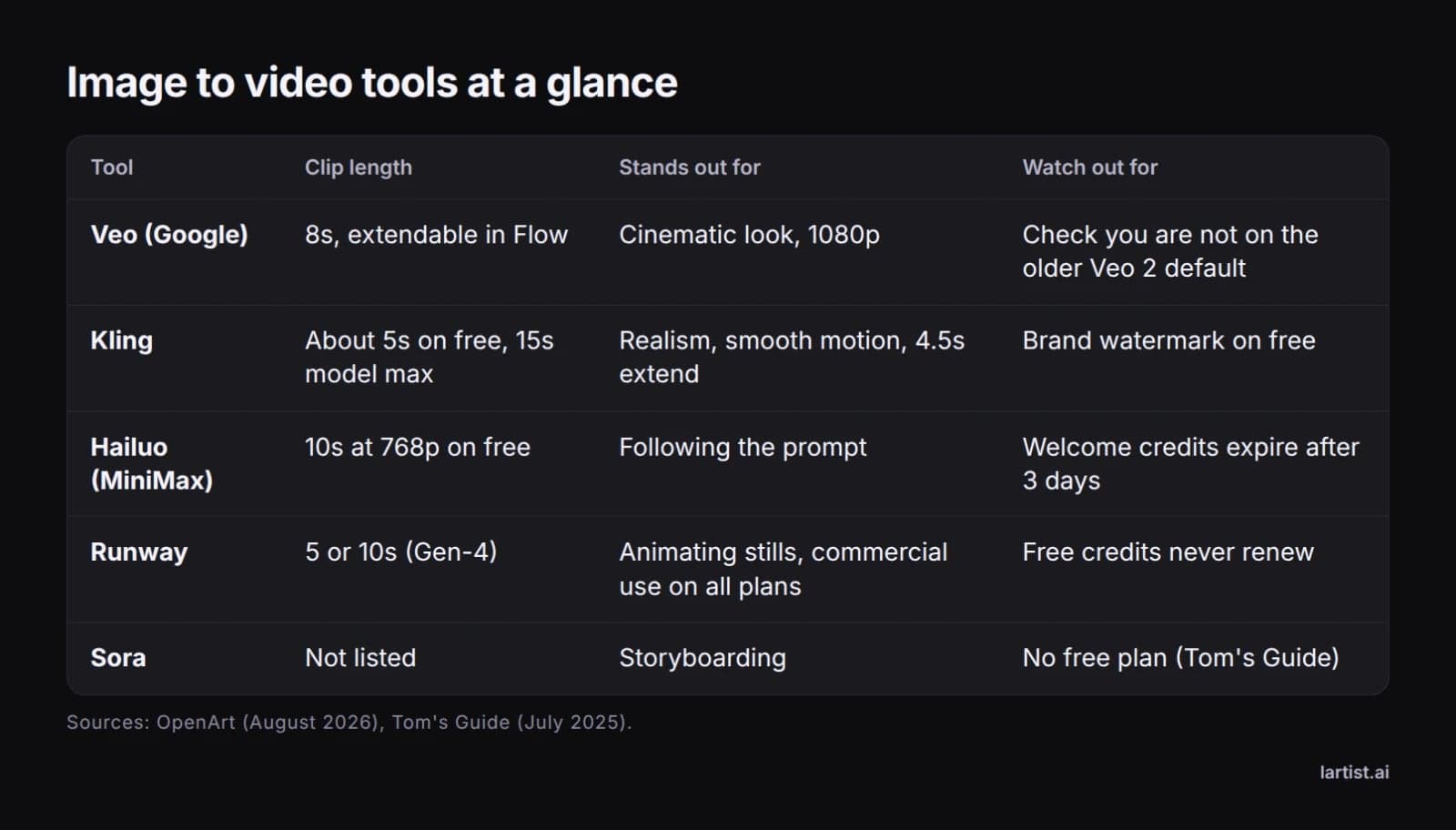
Tom's Guide calls Veo 3 the most impressive AI video generator it has used. It praises the cinematic look and says the tool goes from idea to polished 1080p footage in minutes. Clips run 8 seconds and can be extended in Google Flow (OpenArt). One catch from Tom's Guide is that the default setting toggled to the older Veo 2, so check the model before you generate.
Kling
Kling is Tom's Guide's pick for visual realism and smooth motion. It also has a one-click option that extends a clip by 4.5 seconds. OpenArt reports a 15 second model maximum, but about 5 seconds in practice on the free plan, and a brand watermark on free clips.
Hailuo (MiniMax)
Hailuo is Tom's Guide's pick for prompt adherence. OpenArt lists 10 second clips at 768p on the free plan, but the welcome credits expire after 3 days.
Sora
Sora is Tom's Guide's pick for storyboarding, which means planning several shots as one story. Its comparison table shows no free plan, so you need a paid plan to try it.
Runway
Runway is the go-to tool for animating stills in the r/StableDiffusion thread. Tom's Guide notes that Gen-3 Alpha brought major improvements in fidelity, consistency and motion. OpenArt confirms 5 or 10 second clips on Gen-4, and Runway stands out on commercial use (see rights and watermarks).
Luma Dream Machine, Vidu and Pika
Tom's Guide credits Luma's Ray2 model with fast, coherent motion and very realistic detail. Flixier says Vidu turns images into 3 to 5 second clips in under a minute. Pika 1.0 was one of the earliest AI video tools, according to Tom's Guide. Prices for all of these change often, so check each tool's own plans page before you sign up.
The rest of flixier's list, and OpenArt
Flixier's list of 12 adds tools that work in different ways. Invideo AI turns images into polished videos, and its free plan adds watermarks and limits you to 4 exports a week. Cutout Pro gives 5 free credits, then sells credit packs. Getimg.ai handles images and video, but its free plan of 100 monthly credits covers images only.
Canva, Deevid.ai, Oldphoto.ai, TokkingHeads, Animated Drawings by Meta and Flixier's own tool complete the list. OpenArt runs several video models in one place, including Veo 3.1, Kling 3.0 and Sora 2, with 40 trial credits over 7 days. Its commercial use starts on the Advanced plan.
Kling or Runway? Choose Kling if realism and a quick extend button matter most. Choose Runway if you want a dependable way to animate stills and its plan terms suit your use.
Best free image to video AI: what the free plans really give you
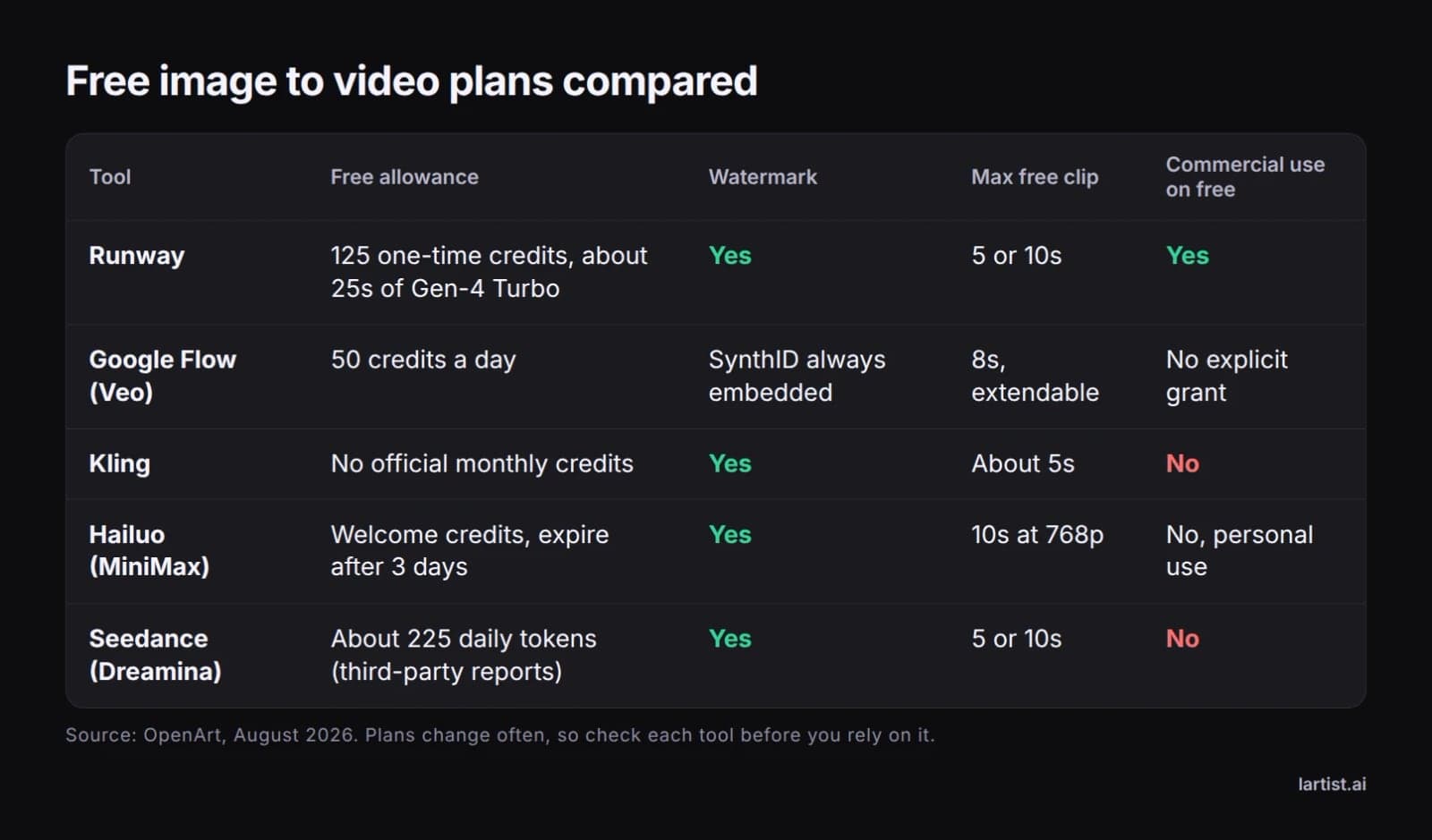
No single free plan is best for everyone. Google Flow gives the most renewable credits, and Hailuo, Runway and Dreamina all allow 10 second free clips (OpenArt). Commercial use differs by plan, as covered in rights and watermarks.
One-time credits versus daily credits
OpenArt makes the key distinction: a free plan is either a one-time allowance or a renewable daily one.
Runway gives you 125 credits once, and they never refresh. At Gen-4 Turbo's rate of 5 credits per second, OpenArt works out that this is about 25 seconds of footage in total. Google Flow gives you 50 credits every day, the largest renewable free allowance in OpenArt's comparison.
If you want to test many images, a daily allowance matters more than a big one-time bonus.
Watermarks
According to OpenArt, Runway, Kling, Hailuo and Dreamina all mark free clips. Google always embeds SynthID, its digital watermark, in Veo output. Flixier describes Vidnoz as watermark-free on its free plan, with 3 minutes of video generation a day, but Vidnoz is a template tool rather than a model that animates a single still.
What Reddit recommends
The top r/StableDiffusion thread on this search gives a simple two-step answer. Make the still first in an image generator such as Midjourney or DALL·E, then animate it in a video tool such as Runway for 5 to 10 seconds.
This works because the still does most of the creative work. It sets the look, the colors and the framing, so the video model only has to add motion. A sharp, clean, well-composed still gives you a better clip than a muddy one, whichever video tool you use.
You do not have to split this across two sites. In Lartist you can make or fix the still and animate it in the same browser studio. The steps are further down.
How to judge any image to video AI: a checklist
New tools appear every month, and many of them will not be in any review yet. These eight questions turn the reviews above into a test you can run on any tool.
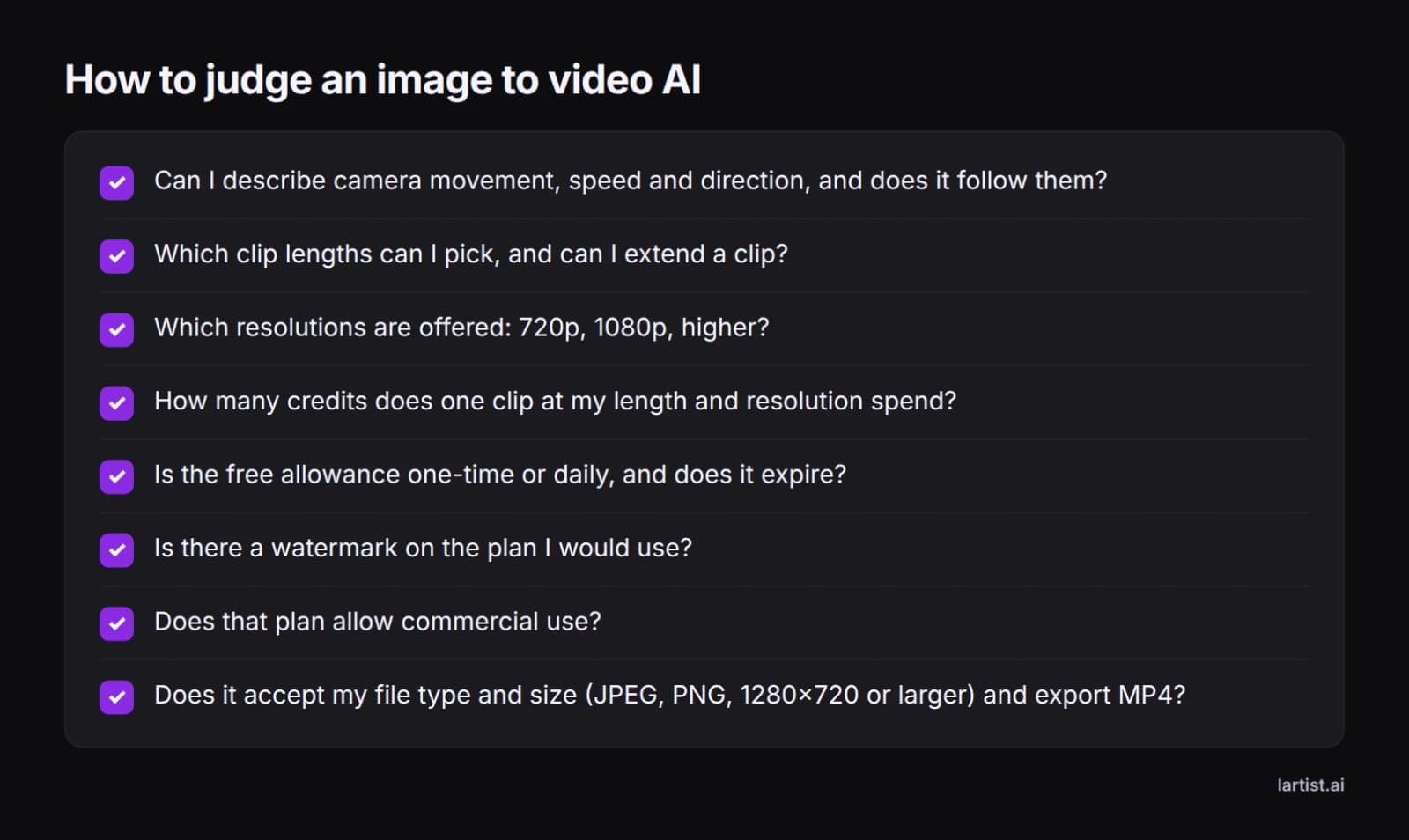
- Prompt control. Can you describe camera movement, speed and direction, and does the tool actually follow them?
- Clip length. Which lengths can you pick, and can you extend a clip afterwards?
- Resolution. Which output sizes are on offer: 720p, 1080p or higher?
- Credit cost per clip. How many credits does one clip at your length and resolution spend, and how many clips does that leave you each month?
- Free allowance. Is it one-time or daily, and does it expire?
- Watermark. Is there one on the plan you would actually use?
- Commercial use. Does that plan allow it?
- Files in and out. OpenArt notes that Veo takes only JPEG and PNG, and Google recommends an input of 1280×720 or larger. For export, MP4 is standard: OpenArt lists Kling, Runway, Hailuo, Veo and Dreamina as MP4 tools.
Clip length and resolution: which settings to pick
On any credit-based tool, longer and sharper clips spend more credits. So pick the smallest setting that does the job, and save the big settings for your final version.
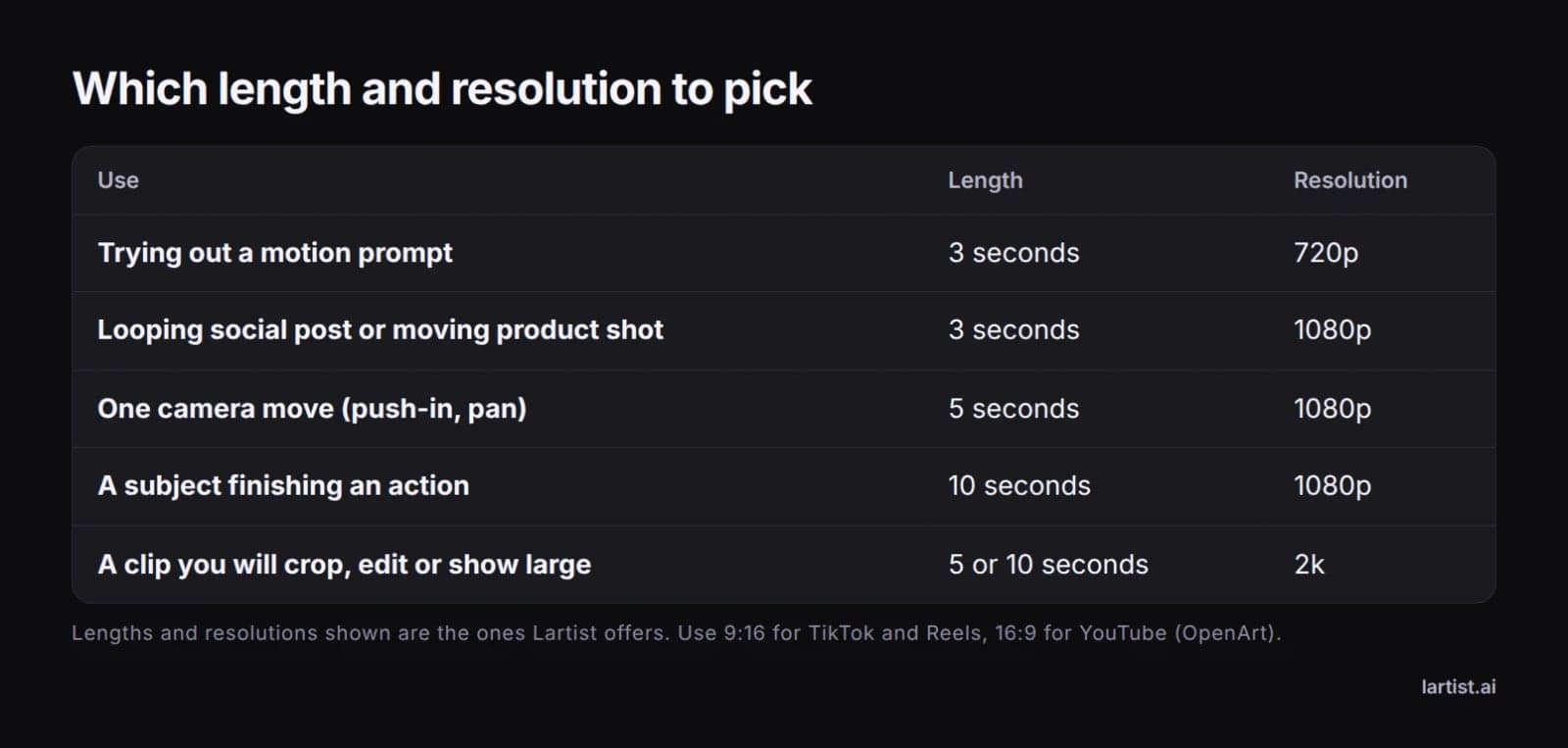
3, 5 or 10 seconds
- 3 seconds suits a looping social post or a moving product shot.
- 5 seconds fits a single camera move, such as a push-in or a pan.
- 10 seconds is for when the subject needs to finish an action, like a person turning to camera.
Longer clips give the model more time to drift away from your original picture. Check faces, hands and small text near the end of a long clip, where problems tend to show up.
720p, 1080p or 2k
Use 720p to try out prompts, 1080p for most social and web use, and 2k when you will crop, edit or show the clip on a large screen. For shape, OpenArt recommends 9:16 for TikTok and Reels, and 16:9 for YouTube.
Expect to wait. OpenArt says generation takes from about 30 seconds to several minutes depending on the model and the queue.
Run your own side-by-side test
Reviews tell you what worked for someone else's pictures. This test tells you what works for yours:
- Pick one still and write one motion prompt. Keep both identical for every clip.
- Make the clip at 3, 5 and 10 seconds, all at 720p.
- Take the length you liked best and make it again at 1080p, then at 2k.
- For each clip, write down the credits it spent and whether you would keep it.
At the end you know your real cost per usable clip, which matters more than any list price.
How to write a motion prompt that works
OpenArt breaks a good motion prompt into four parts:
- Direction: a pan, a tilt or a dolly.
- Speed: slow, gentle, fast.
- Style: cinematic, handheld, dreamy.
- Camera movement: a tracking shot, a close-up, a static camera.
Tom's Guide adds one tip: use cinematography language, especially on tools that make 10 seconds or more from one prompt. "Slow push-in" works better than "zoom a bit".
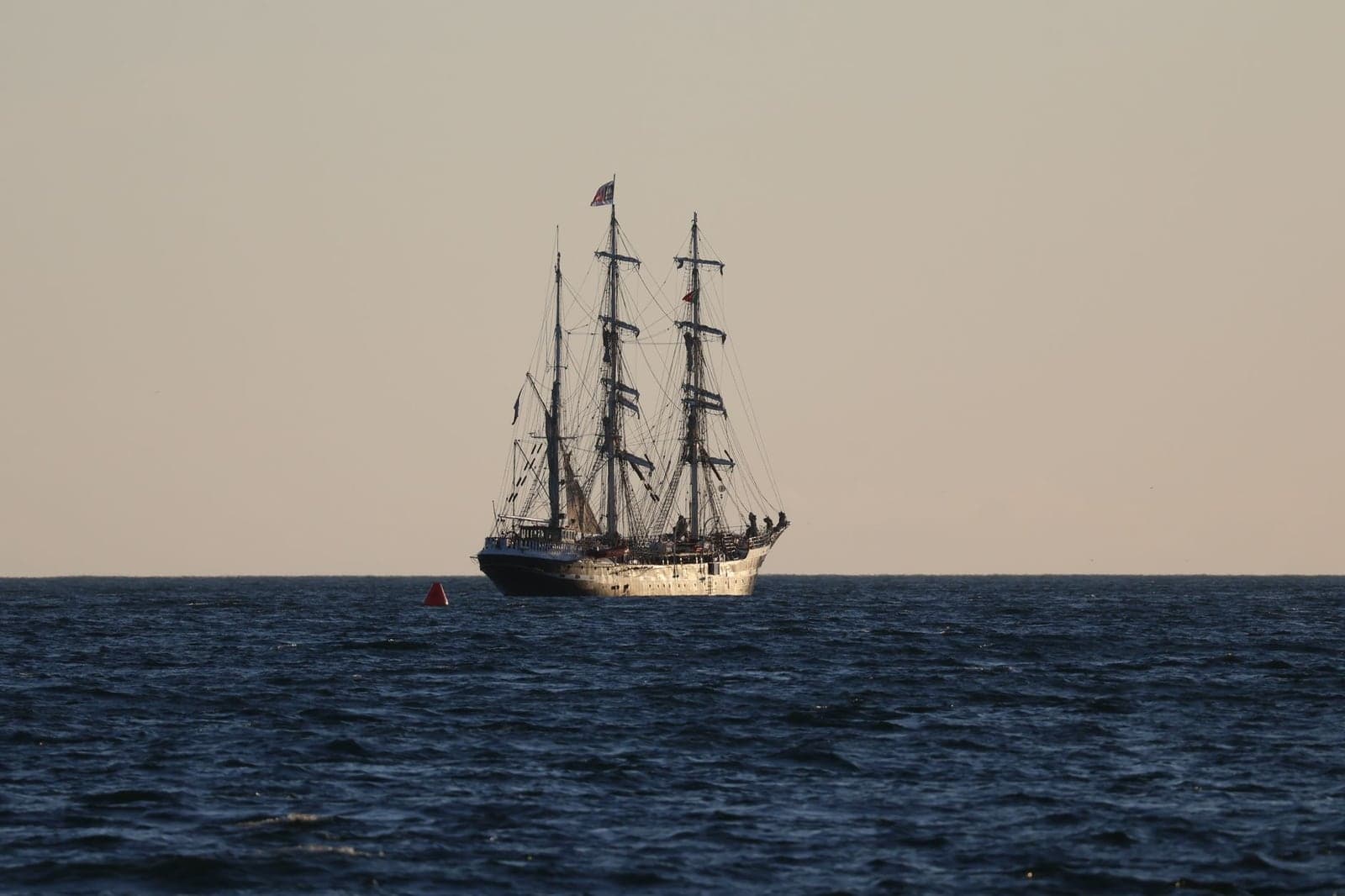
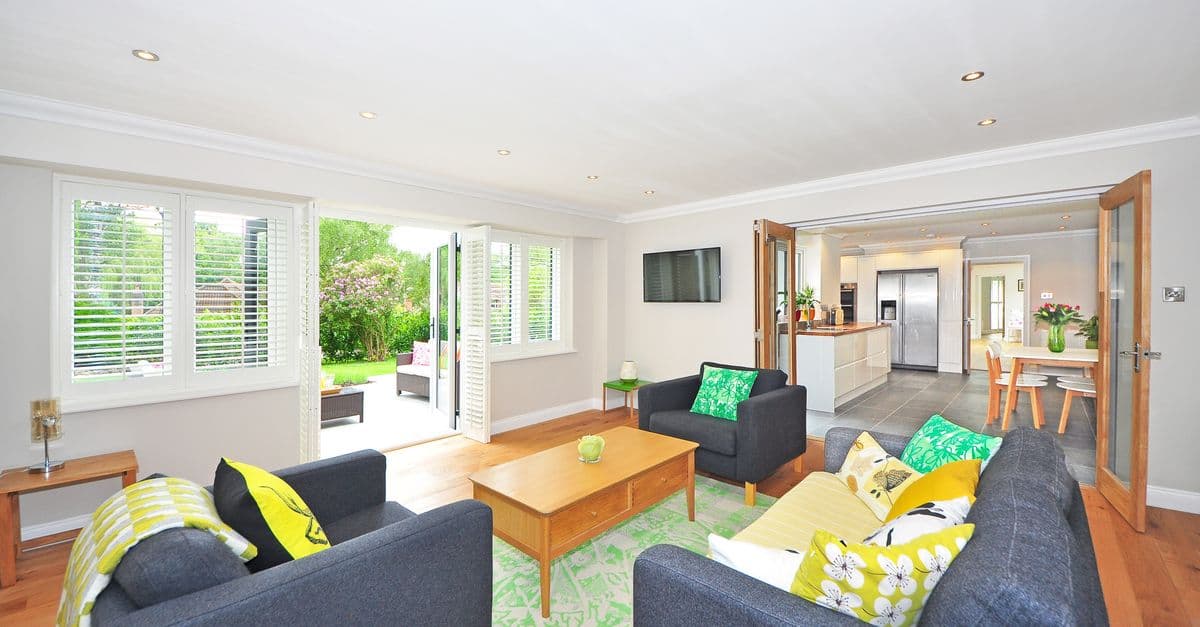
Here are prompts for two example stills. The garden still at the top of this page was made with Lartist.
Four tips make most prompts better:
- Describe motion, not the picture. The tool can already see the ship. Tell it what moves.
- Pick one main movement per clip. A pan, a zoom and a walking subject at once often turns to mush.
- Keep the subject in frame. Ask for movements that do not push your subject out of the picture.
- Match the length to the action. A product turning once fits 3 to 5 seconds. A slow pan across a garden can use 10.
How to turn an image into a video in Lartist
Lartist is an AI art studio that runs in your browser, with nothing to install. The interface is in English, French, German and Spanish. It does both text to video and image to video, and you can prepare your still in the same place.
Prepare the still
This is the Reddit two-step, in one studio:
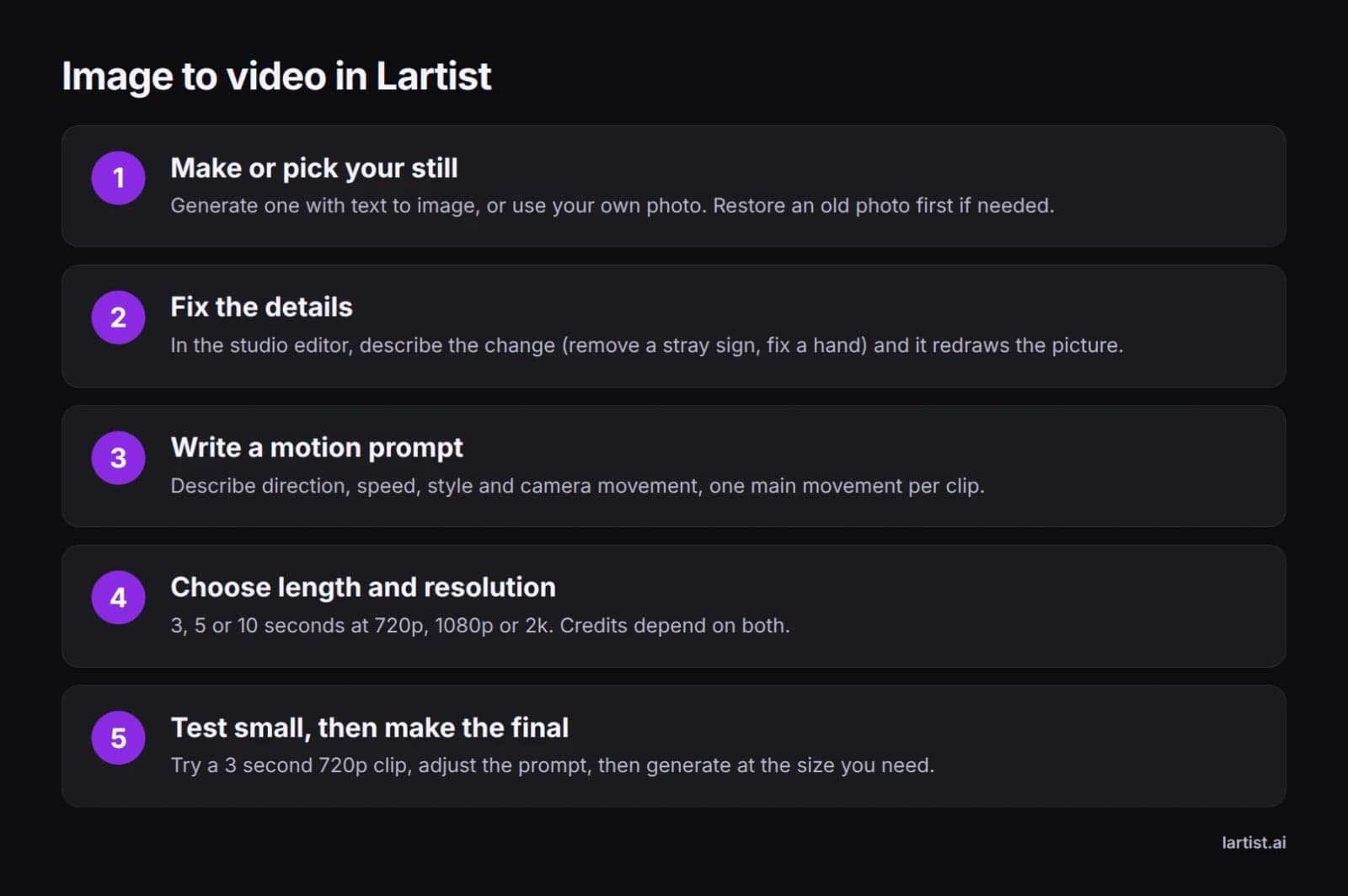
- Make a picture with text to image, or start from your own photo.
- Restore an old photo first if you want to bring a family picture to life.
- Fix or clean up details in the studio editor: describe the change, such as removing a stray sign or fixing a hand, and it redraws the picture.
Animate it
- Upload or choose your still.
- Write a motion prompt covering direction, speed, style and camera movement, with one main movement.
- Pick a length of 3, 5 or 10 seconds and a resolution of 720p, 1080p or 2k.
- Generate the clip.
Video credits depend on both length and resolution. Start with a 3 second 720p clip to check your prompt, adjust it, then make the final at the size you need. To get started, open Lartist image to video.
Credits come with monthly or yearly plans, and credit packs top them up when you need more. To compare what each plan includes, see the plans on /pricing.
Before you post: rights and watermarks
Commercial use often depends on the plan, not just the tool. OpenArt's table shows Runway as the only free plan that explicitly allows commercial use, and Runway allows it on all its plans. Kling, Hailuo and Dreamina limit free clips to personal use, and Google Flow has no explicit grant either way.
Paying does not always settle it. Tom's Guide's table shows that some entry-level paid plans exclude commercial use, including Luma Labs, Pika Labs and Haiper. Before you use a clip for a client, a shop or an ad, read the terms of the exact plan you are on.
Start from photos you own or have the rights to use, especially pictures of other people. For more on keeping your images and logins safe, read our guide to protecting your work and your accounts as an AI artist.
If you are still deciding where to make your stills and clips, here is why creators choose Lartist.
FAQ
What is the best image to video AI right now?
Veo 3 is the best overall pick according to Tom's Guide, after 200 hours of testing. Kling leads for realistic motion, Hailuo MiniMax for prompt adherence and Sora for storyboarding. Reddit users often animate stills in Runway. Newer versions such as Veo 3.1 and Kling 3.0 have since appeared, so check the current model.
What is the best free image to video AI?
Google Flow gives the largest renewable free allowance, at 50 credits a day, according to OpenArt. Hailuo, Runway and Dreamina all allow 10 second free clips (OpenArt). Hailuo's welcome credits expire after 3 days, and Runway's 125 credits never renew.
How long are AI image to video clips?
Most AI image to video clips run 5 to 10 seconds on free plans, according to OpenArt. Veo makes 8 second clips that can be extended in Flow, and Kling's model reaches 15 seconds. Lartist offers 3, 5 or 10 seconds. Longer clips can drift from your original picture, so check them carefully.
Which image to video AI has no watermark on the free plan?
Few model-based tools do. OpenArt reports watermarks on free clips from Runway, Kling, Hailuo and Dreamina, and Google always embeds its SynthID watermark in Veo output. Flixier describes Vidnoz as watermark-free on its free plan, with 3 minutes of video a day, but Vidnoz builds template videos rather than animating one still.
Can I make an image to video online without installing anything?
Yes, all the major tools here work in a web browser. Lartist runs in the browser with nothing to install, and lets you prepare a still and animate it in the same studio. You pick 3, 5 or 10 seconds at 720p, 1080p or 2k. Veo, Kling, Hailuo and Runway also work online.
Can I use AI-generated video clips commercially?
It depends on the tool and the exact plan, and even some entry-level paid plans exclude it. The section on rights and watermarks sets out which tools allow it. Always read your plan's terms before using a clip for clients or ads.