Photo Editing · 8 min read
Photo Background Change AI: Swap, Light and Clean Up Edges
Change a photo background with AI in 3 steps: upload, describe the new scene, then fix edges and lighting. Copy prompts for products, portraits and pets.

To change a photo background with AI, upload a clear photo, remove the background or describe the new scene, then check the edges and light before you export. Free online tools such as AI Ease, Pacdora and SellerPic do the swap in your browser. In Lartist you run background replacement, then fix leftovers in the studio editor by describing them in words. Open Lartist to try it on your own photo. Below are the 3 steps, a worked example with two prompts and the checks that make the result look real.
How to change a photo background with AI
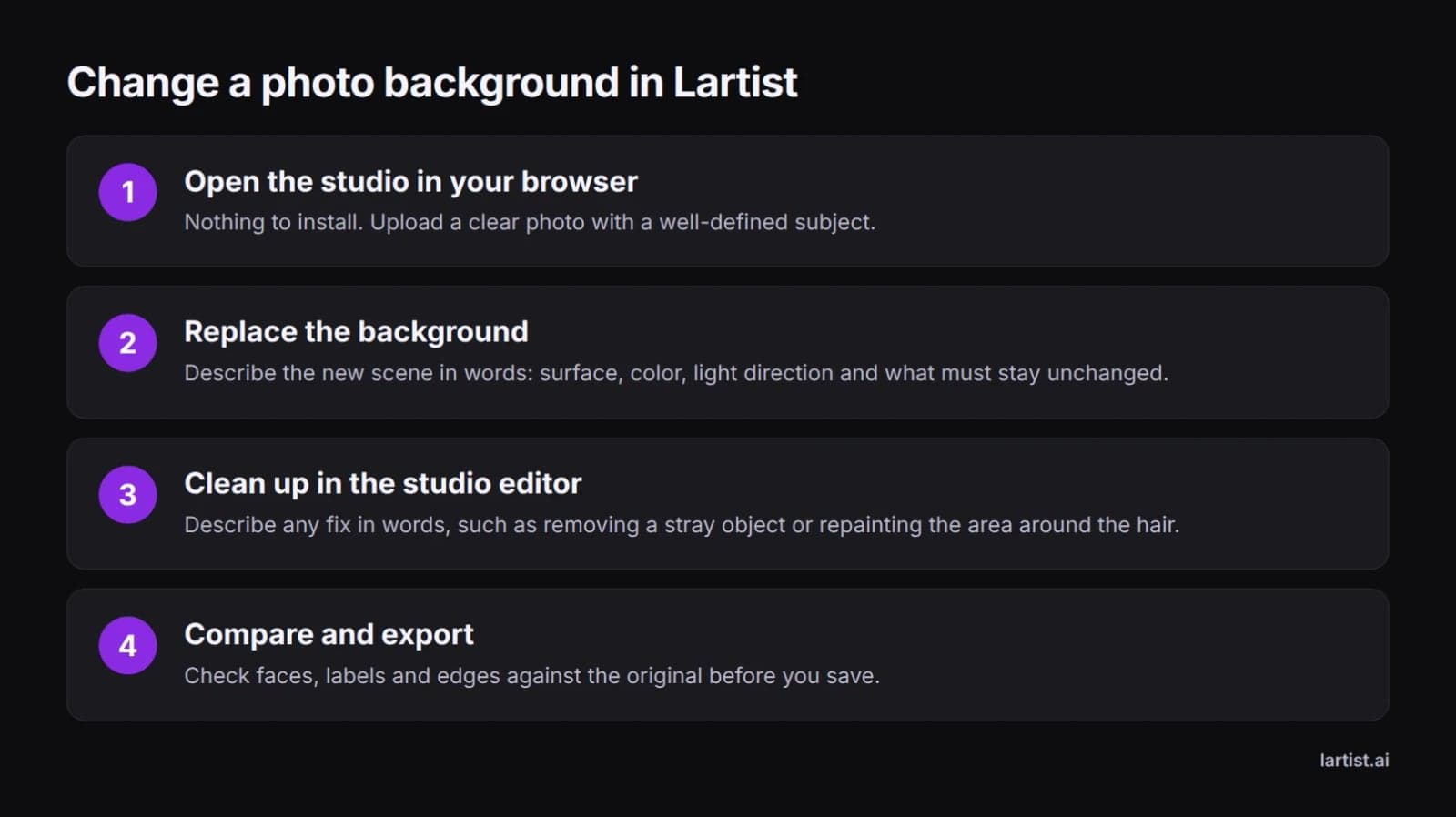
- Upload a clear photo with a well-defined subject.
- Remove the background or describe the new scene: a color, preset, your own image or a prompt.
- Check edges, shadows and light, fix what looks off, then export.
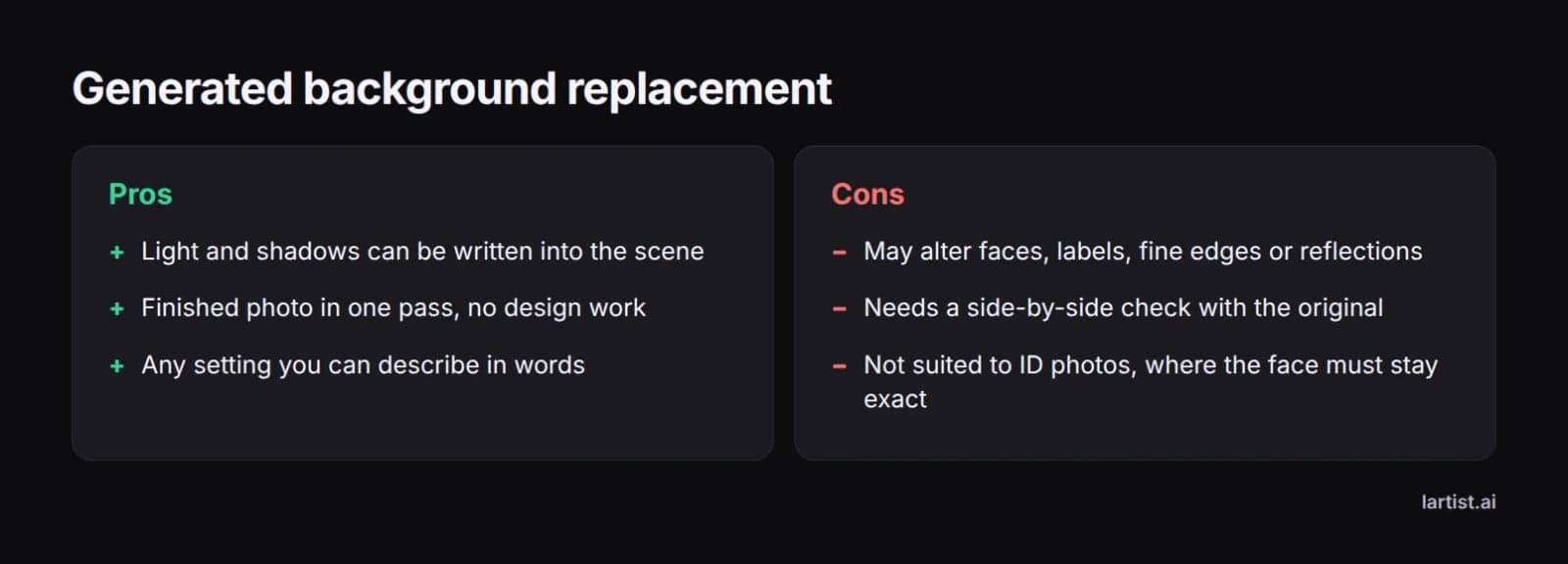
There are two kinds of tool. Cut-out tools remove the background and place your subject on a color or image you choose. Generative tools redraw the background as part of the photo, often from a text description. The second kind usually blends light better, but it may change small details in your subject.
How to change a photo background in Lartist
Step 1: Upload your photo in the browser
Lartist runs in the browser with nothing to install, and the interface is in English, French and German. Choose a photo where the subject stands out clearly from its current background.
Step 2: Run background replacement
Use background replacement on your photo to put the subject in a new scene. Then judge the scene by its light: does it fall from the same side as the light on your subject? If the scene needs a change, such as warmer light or a plainer wall, you describe that in the next step.
Step 3: Describe changes in the studio editor
In the studio editor you describe a change in words and it redraws the picture. Use it to adjust the scene and to clean up the swap. For example: "make the window light come from the left", "remove the grey outline around the hair" or "make the label text sharp and straight". You can also fix a hand or a face, or repaint part of the image.
Step 4: Check the result, then export
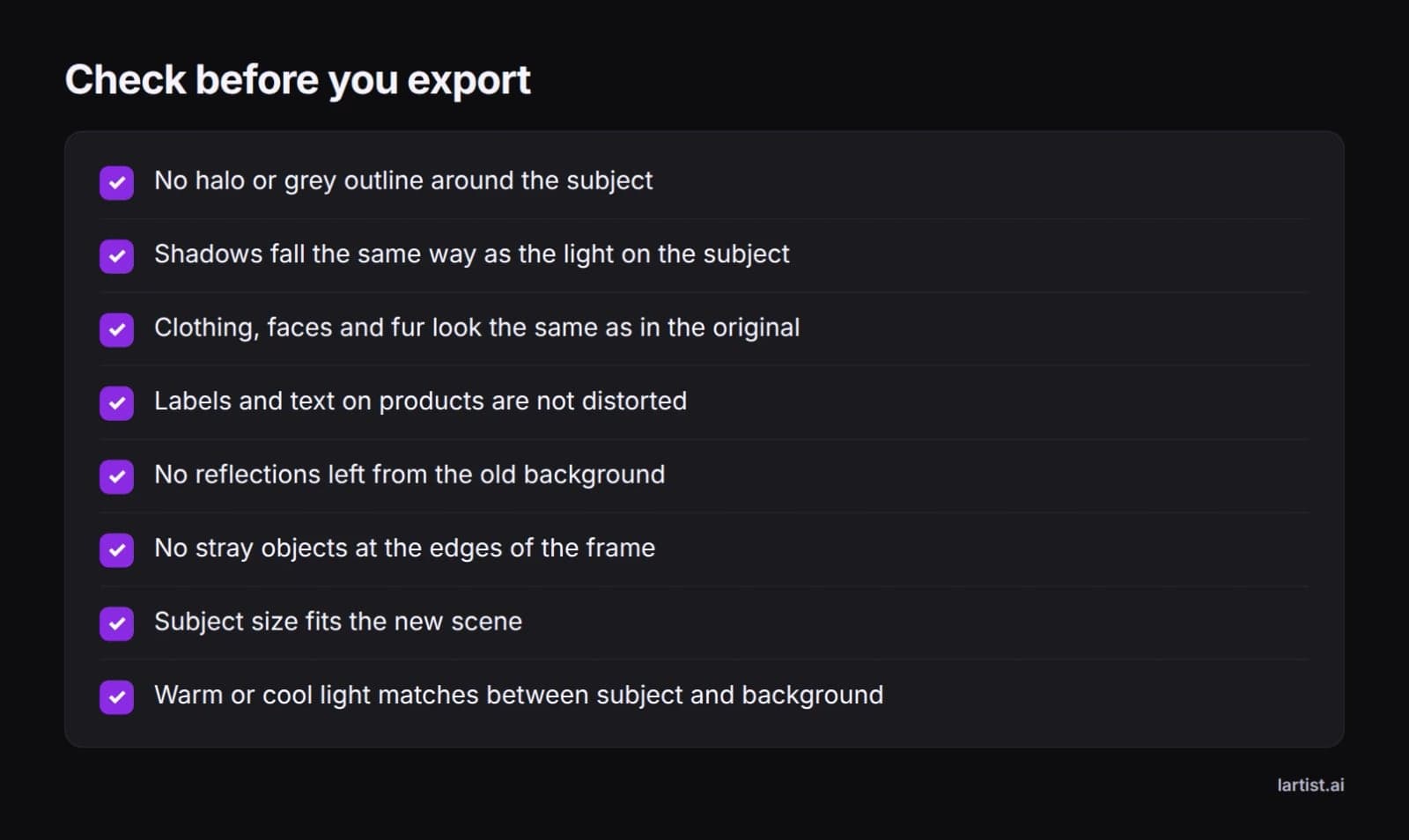
Put the result next to your original and zoom to 100 percent on hair, fur, glass and labels. Most errors are small and sit at the edges. Look for:
- a pale fringe or outline around the subject
- shadows pointing the wrong way, or none under a product
- faces, clothes or lettering that no longer match the original
- reflections or objects left over from the old scene
- hair or fur that has been clipped
- a subject too big or too small for the new scene
Fix anything you find by going back to Step 3, then save.
Every feature in Lartist spends credits. Plans give you credits each month or each year, and credit packs top them up. To see what fits your use, see the plans.
One photo, two prompts: what changes
Prompts work best when you change one thing at a time. Take a single photo: a ceramic mug on a kitchen counter, lit by a window on the left. Here are two ways to describe its new background, and what to check in each.
Prompt A, for a marketplace listing: "Swap the backdrop for pure white with even light and a soft shadow beneath the mug. Leave the glaze and the logo as they are."
Prompt B, for a lifestyle post: "Set the mug on a dark slate worktop beside a window on the left, early morning light, a plant out of focus behind it. Leave the glaze and the logo as they are."
What differs. Prompt A drops the window, so the light direction no longer has to match. The thing to check is the shadow: without it, the mug looks pasted on. Prompt B keeps the window on the left, the same side as in the original, so the highlight already on the mug still makes sense. Here the checks are the glaze, which can still reflect the old kitchen, and the size of the plant next to the mug.
What stays the same. The last sentence is identical in both prompts. Keeping your "leave unchanged" line fixed means any change to the logo comes from the scene, not from new wording.
AI background change prompts you can copy
A good prompt names four things: the surface, the color, the light and what must stay unchanged. Leave one out and the AI guesses.
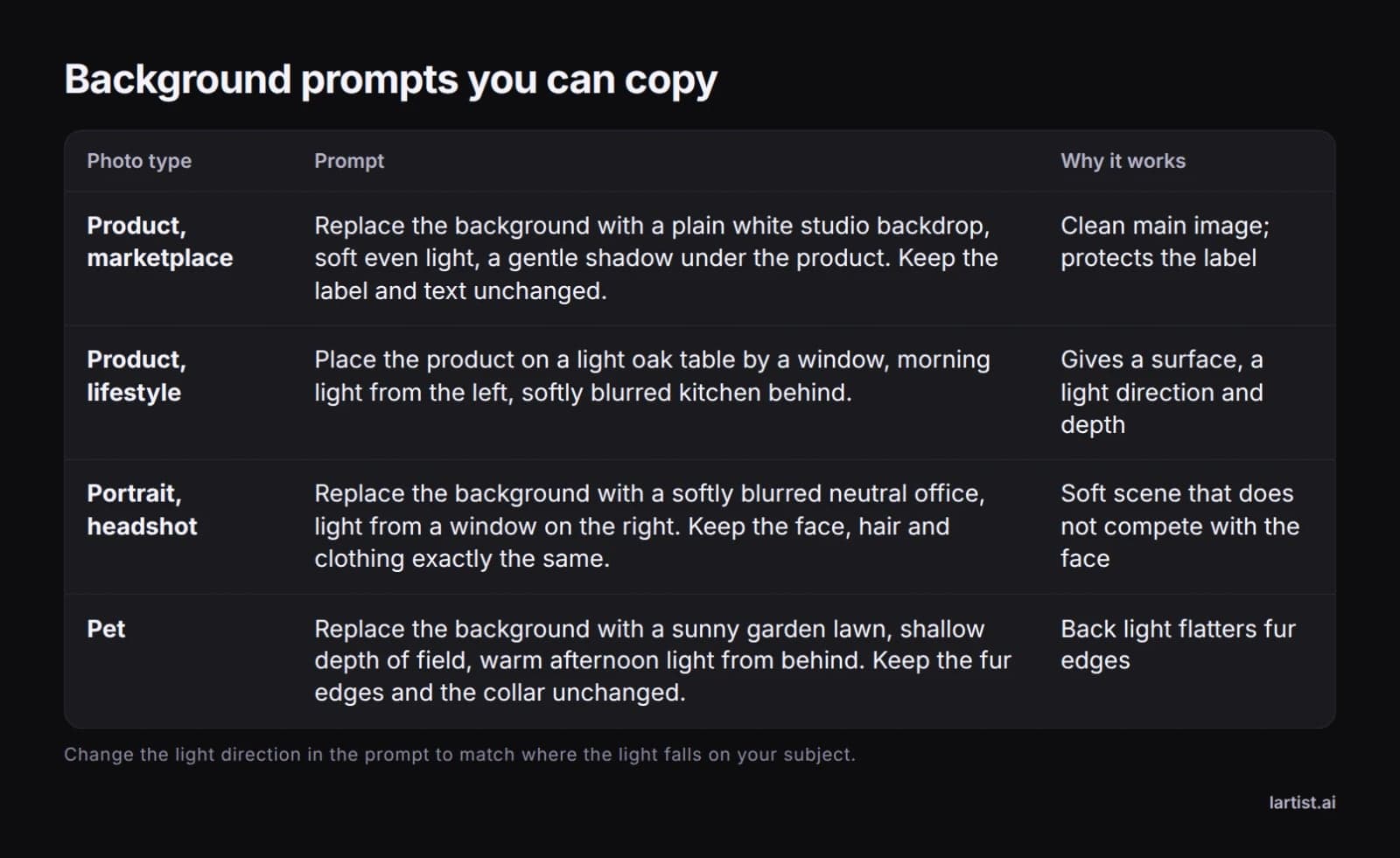
Portraits and headshots: "Put a plain bookshelf wall behind the person, well out of focus, window light from the right to match the face. Do not alter the face, hair or clothes." A blurred scene keeps attention on the face.
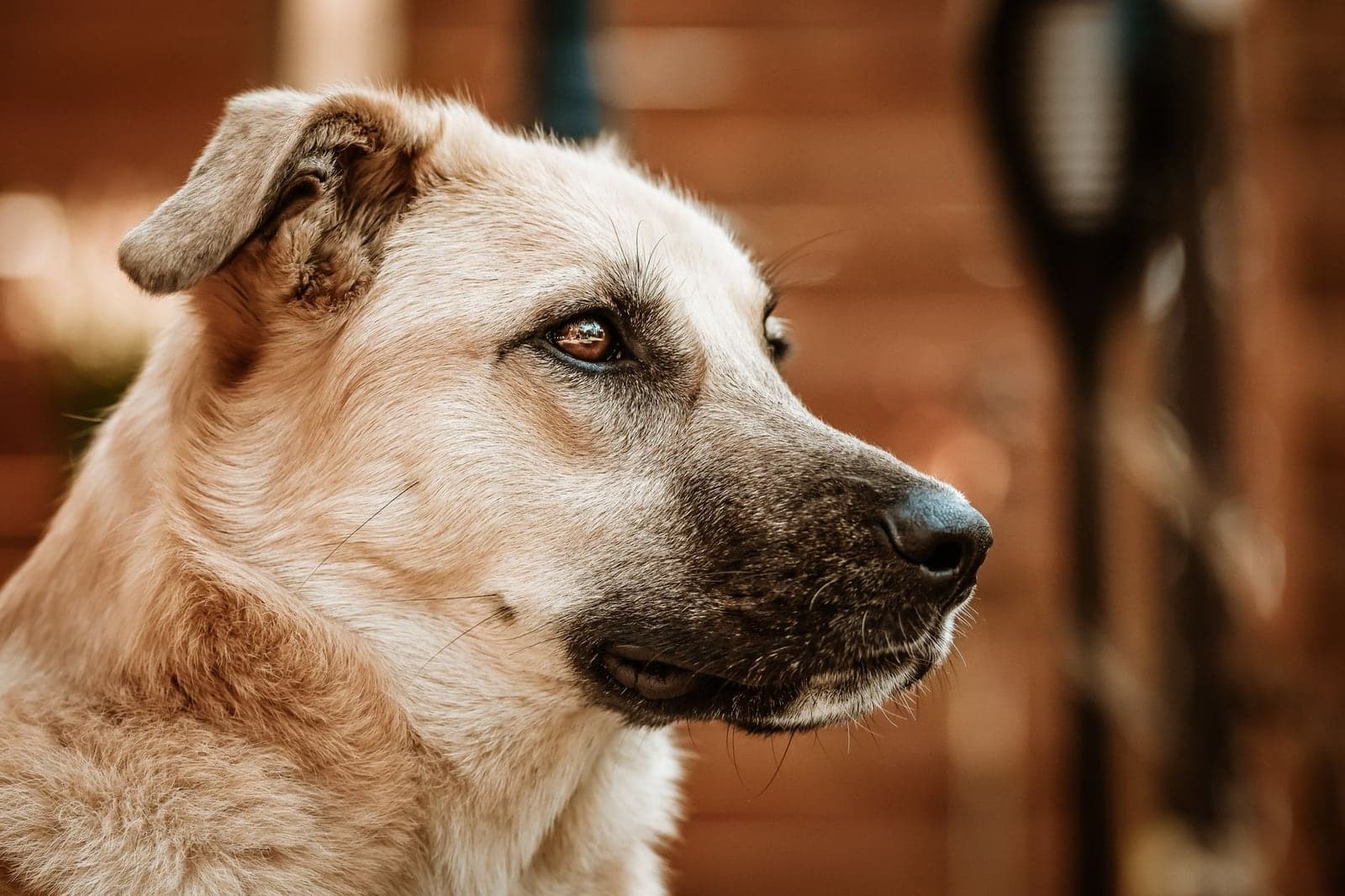
Pet photos: "Set the dog on a grassy lawn, warm late-afternoon sun from behind, background blurred. Keep every strand of fur and the collar as they are." Light from behind can make fur edges glow, which helps hide small edge errors.
Match the light so the new background looks real
A common reason a swap looks fake is mismatched light. Weezard notes that a subject lit by a window usually fits a softly lit room better than a harsh midday beach.
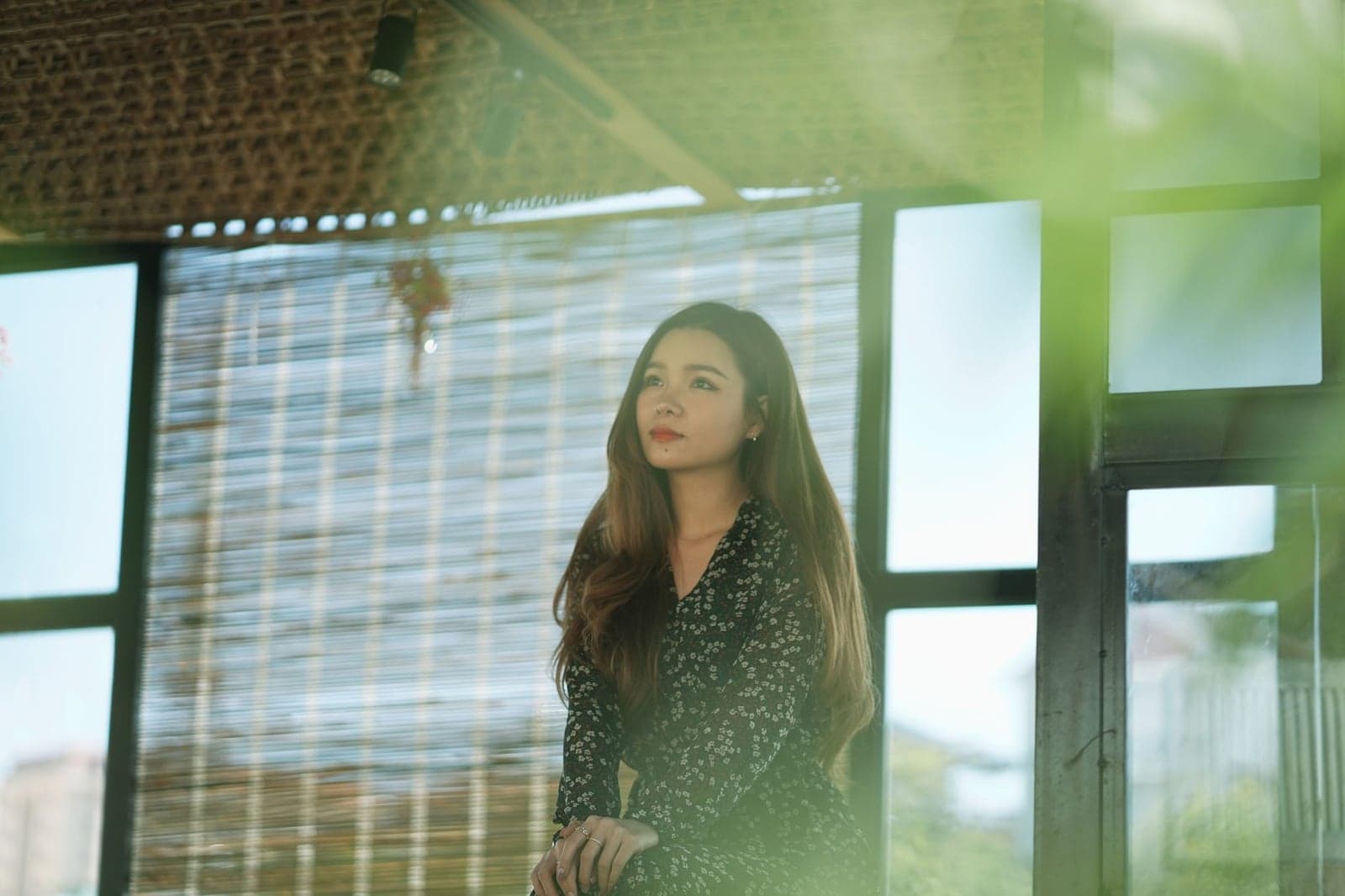
Direction and softness. Before you choose a scene, look at your subject. Which side of the face is brighter, and where does the shadow fall? Write that direction into your prompt, such as "light from the left". Soft light on the subject needs soft light in the scene.
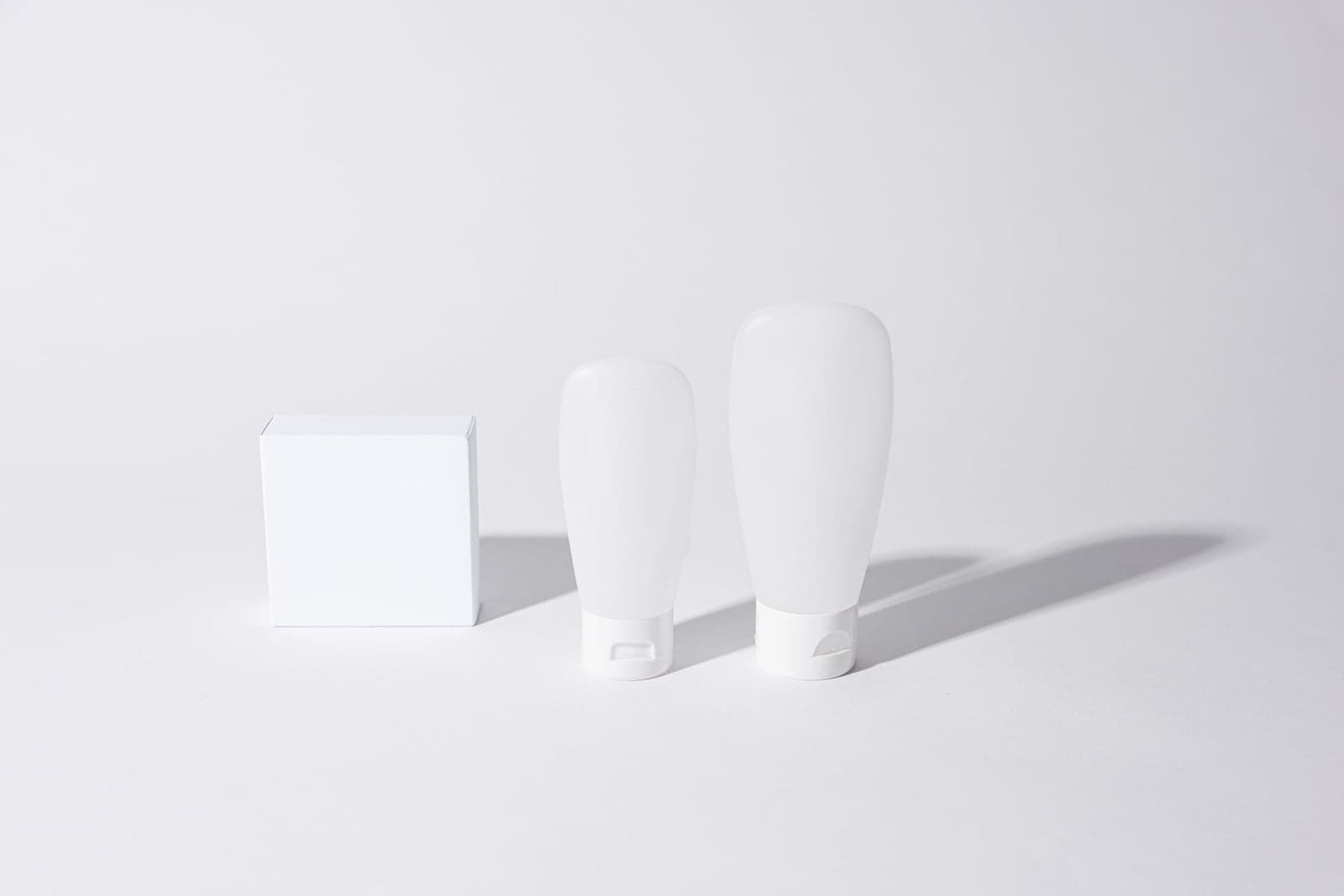
Shadows. Products and feet need a contact shadow, or they seem to float. Pacdora says it uses 3D rendering to adjust light and shadow, and SellerPic stresses realistic shadows. With any tool, you can ask for a soft shadow under the product.
Color and scale. Match warm with warm and cool with cool: a shot under yellow bulbs looks odd against a cold blue sky. AI Ease adds that you should adjust the placement and size of your subject after the swap, or the image can look fake.
White backgrounds for marketplace product photos
SellerPic offers white backgrounds made for Amazon, eBay and Walmart. Check your marketplace's own image rules before you upload, since they decide what the main image may show and they change from time to time.
For a whole catalog, try one description on a single typical photo first, then reuse the exact wording across the set so every listing matches. If you need to process many images at once, AI Ease says it accepts up to 20 pictures in one upload.
Background replacement or transparent PNG: which do you need?
A generated scene saves work, at a cost. Weezard's page warns that its model may alter faces, labels, fine edges or reflections even when the prompt asks it to keep them, which is why the Step 4 checks matter.
Passport and ID photos: change the background with care
Passport offices set strict rules on background color, lighting and how much the face may be edited. Because generative tools can change facial details, use a cut-out onto a plain color, then check the result against your country's official rules. An ID photo is personal data, so keep your uploads and accounts safe in any online editor.
Free and online AI background changers: what to expect
AI Ease and Pacdora both say their background change is free, and SellerPic calls its replacer free. All of them run online, so you need no download. If you prefer an app, Google Play lists apps such as AI Background Changer.
"Free" often comes with limits: lower resolution, a watermark or a required account. If you want no signup at all, test a tool with a photo you do not mind sharing before you upload anything personal.
AI background changers compared
Here is what each tool's own page says about how it works and its limits.
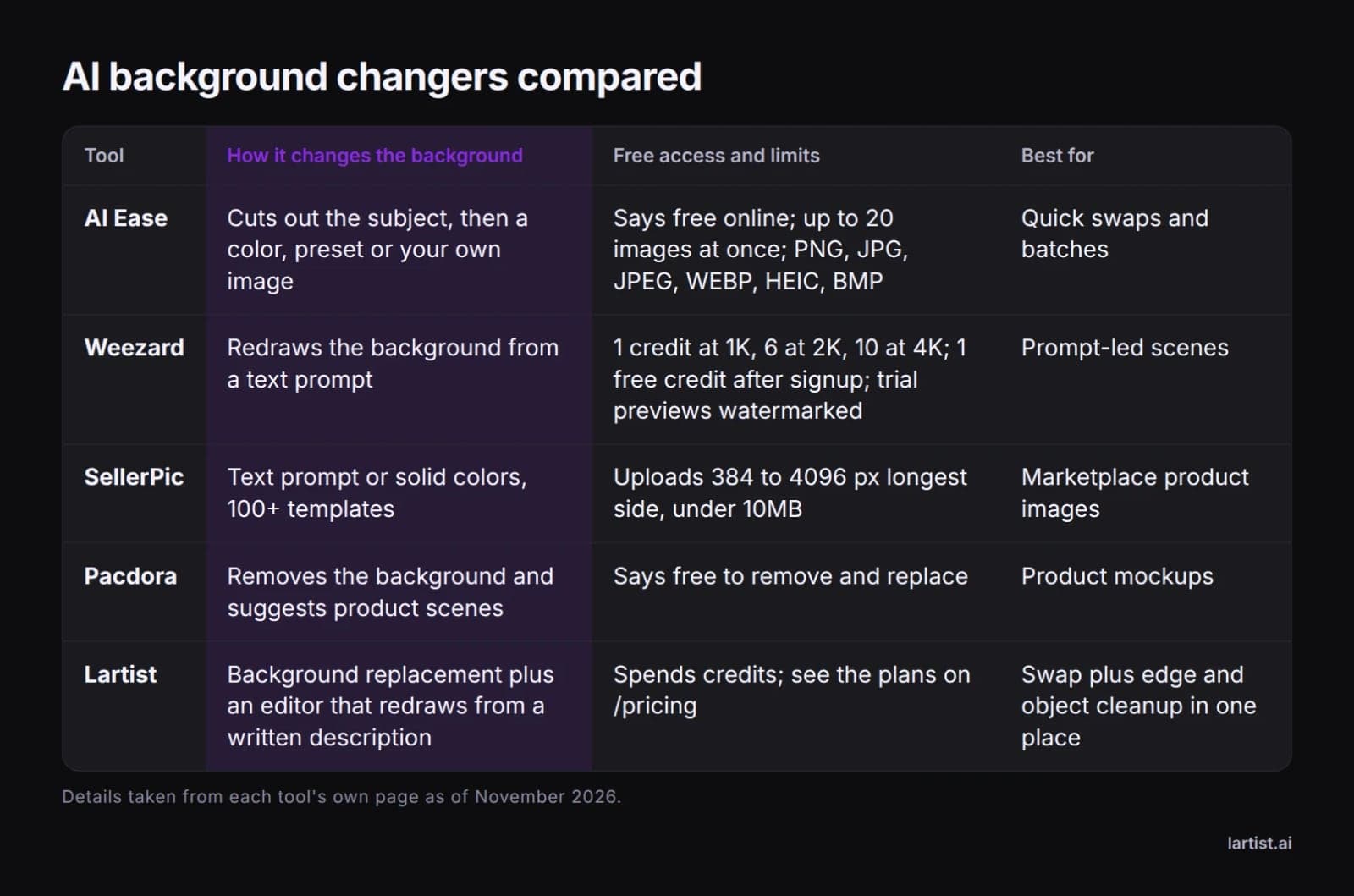
- AI Ease cuts out the subject, then lets you pick a color, a preset or your own image. It says it is free online, takes up to 20 images at once, accepts PNG, JPG, JPEG, WEBP, HEIC and BMP files, and works on phones without an install.
- Weezard redraws the background from a text prompt. Edits cost 1 credit at 1K, 6 at 2K and 10 at 4K, and its prompt library has 30 examples.
- SellerPic offers text prompts or solid colors and more than 100 preset templates. Uploads must be between 384 and 4096 px on the longest side and under 10MB.
- Pacdora focuses on products. It removes the background, suggests scenes and uses 3D rendering for light and shadow.
- Lartist pairs background replacement with the word-based cleanup in Step 3, so the swap and the fixes happen in one place. It spends credits: see the plans.
What to do with the finished photo
Use it in listings, on a profile or in a social post, and keep the same background wording across a set. For motion, Lartist also does image to video in the video studio, with clips of 3, 5 or 10 seconds at 720p, 1080p or 2k. Compare options in our guide to turning a still photo into a short video, or read why people choose Lartist.
FAQ
Is there a free AI tool to change a photo background?
Yes. AI Ease and Pacdora both say their background change is free, and SellerPic calls its replacer free. Free access often has limits. Weezard, for example, gives 1 free credit only after signup and verification, and its trial previews carry a watermark, so check the terms before you rely on one.
Will AI change my face or product when it swaps the background?
It can, if the tool redraws the whole photo. Generative tools may alter faces, labels, fine edges or reflections even when you ask them not to. Say clearly what must stay unchanged, then run the checks in Step 4 at full zoom before you export.
What should I write in an AI background change prompt?
Name the surface, the color, the light and what must stay unchanged. For example: set the product on a dark slate worktop, light from a window on the left, a soft shadow beneath it, and leave the logo as it is. Match the light direction to where the light already falls on your subject.
Can I change a photo background on my phone without downloading an app?
Yes. AI Ease says its background changer works on mobile devices without downloading or installing software. Open the site in your phone's browser, upload the photo from your camera roll and save the result. A larger screen helps when you check edges.
How do I change a passport photo background with AI?
Use a plain color cut-out, not a redrawn scene, and follow your country's official photo rules. Passport offices set strict limits on background color, lighting and changes to the face. No tool can promise the photo will be accepted, so compare the result with each rule before you submit it.
Should I make a transparent PNG or replace the background?
Make a transparent PNG if you will place the subject in a design later, such as a banner, slide or marketplace template. Replace the background if you want a finished photo with a believable scene. Replacement handles light and shadow in one pass, while a cut-out keeps your subject untouched.