AI Art · 8 min read
Art Generator: How to Pick One by the Art You Want
What an art generator does, how to pick one by job (text, sketch, restyle, restore), prompt tips, ideas and how credit billing works. See the table.
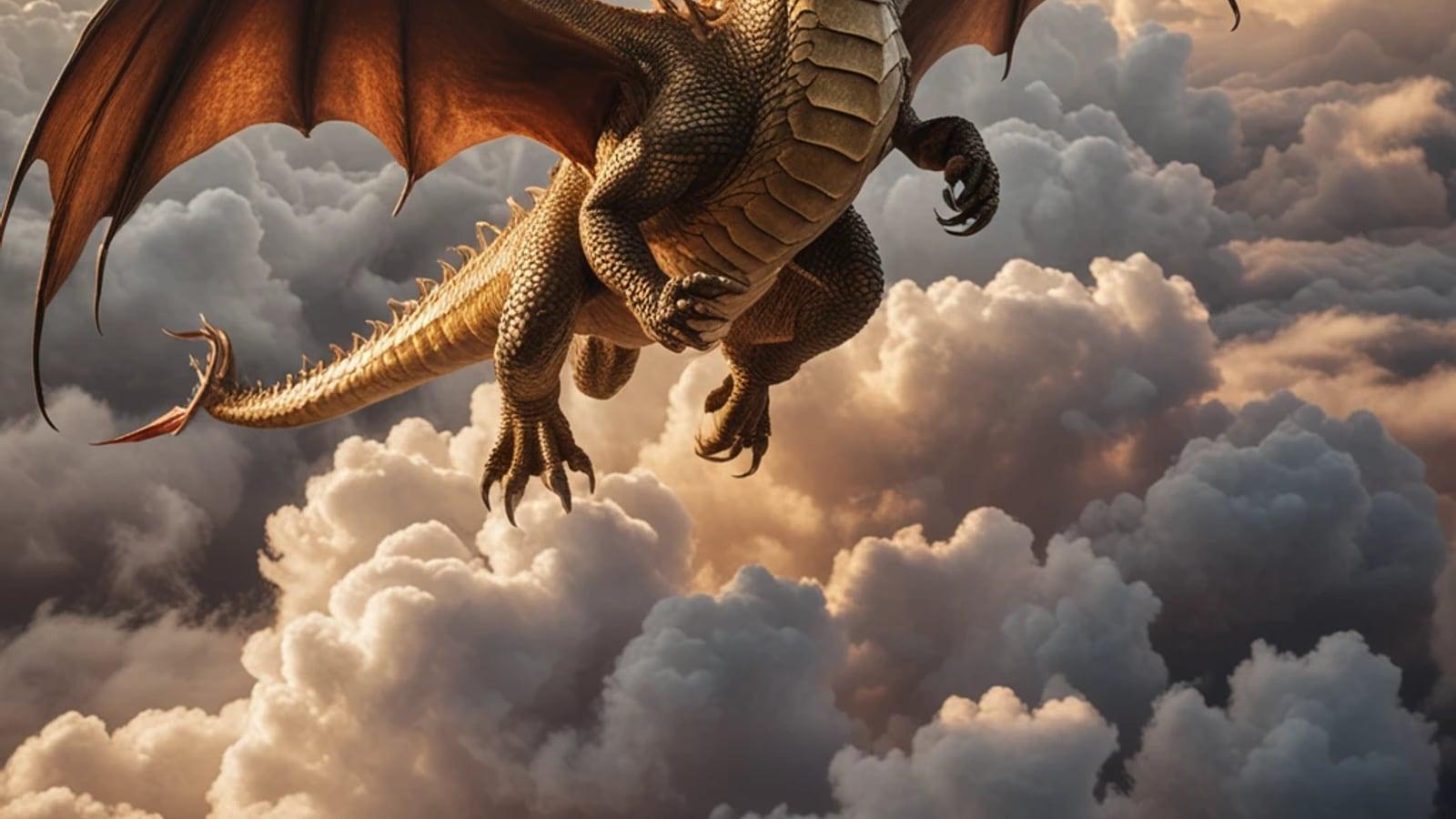
An art generator is an AI tool that creates artwork from a text prompt or a reference image. You describe the subject, setting, lighting and mood, pick a style such as watercolor, oil painting, anime, pixel art or 3D, and it draws the picture. Most run in a browser, so there is nothing to install.
To make art now, open Lartist in your browser, describe the picture, and fix details in words. Each generation spends credits, so see the plans on /pricing. The steps below show the full route, then the guide covers prompts, ideas and how to choose a tool.
What is an art generator?
Picsart defines an AI art generator as a tool that "creates artwork from a text prompt or a reference image." Adobe aims its generator at "visual artists, graphic designers, educators, illustrators, or anyone looking to create art quickly from simple prompts and edits."
Every art generator takes one of two inputs:
- Words (text to image). You write what you want to see, and the tool draws it.
- Pictures. You upload a photo or a sketch. The tool keeps the shapes or the composition and changes the look.
"Art generator" and "AI art generator" mean the same thing in practice. Older art generators made patterns from code, but nearly every result on the first page today means the AI kind.
How to make art in Lartist, step by step
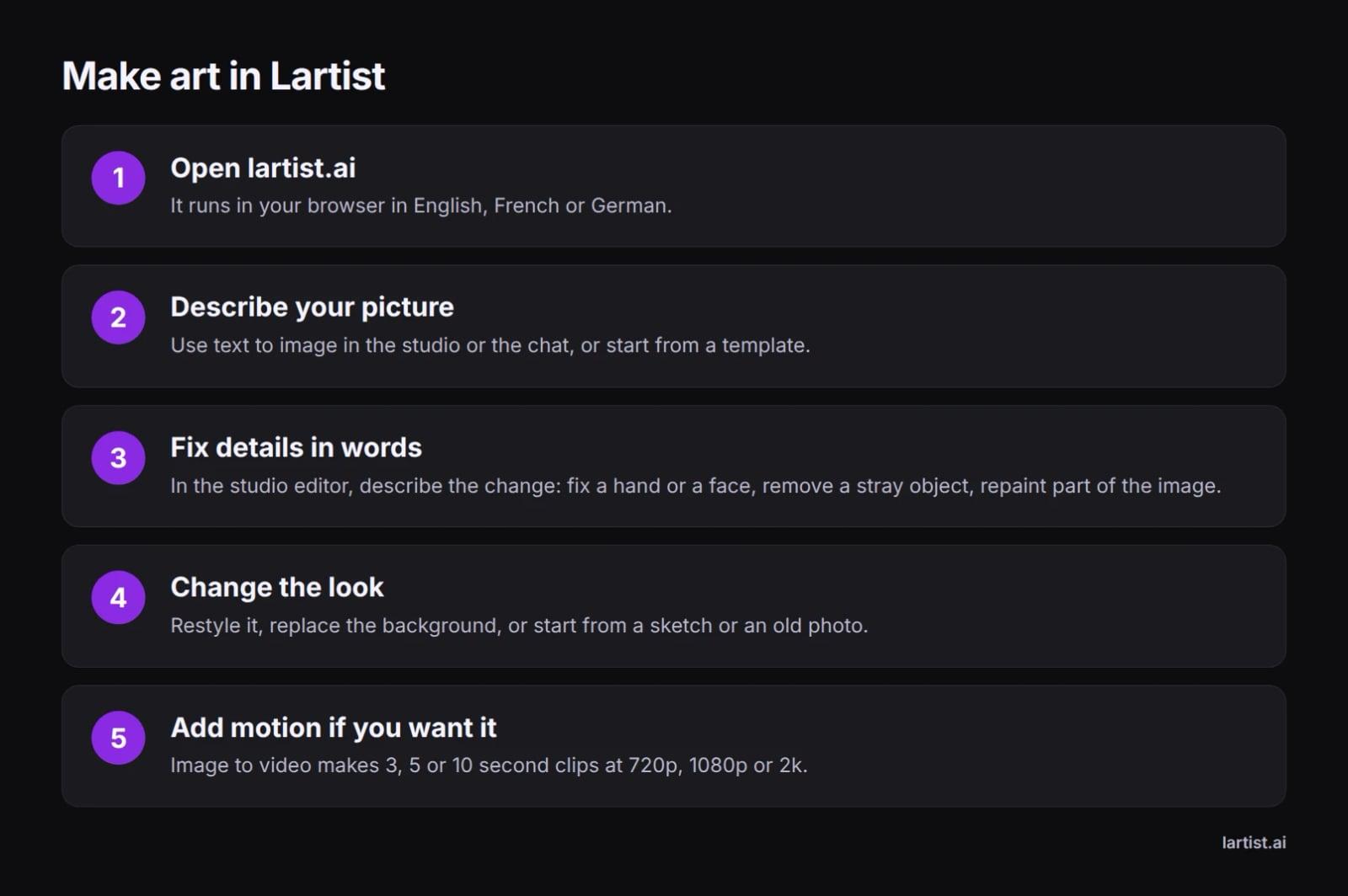
- Open lartist.ai. It runs in your browser, with nothing to install. The interface is in English, French or German.
- Describe your picture. Use text to image in the studio or the chat, or start from a template. Try the bronze dragon prompt from the ideas list below: "A bronze dragon flying through clouds, sun breaking through, majestic, 3D render."
- Fix details in words. In the studio editor, describe the change and it redraws the picture. You can fix a hand or a face, remove a stray object or repaint part of the image.
- Change the look. Restyle the picture or replace the background. You can also start from a sketch or restore an old photo instead of writing a prompt.
- Add motion if you want it. Text to video and image to video make clips of 3, 5 or 10 seconds at 720p, 1080p or 2k. Video credits depend on length and resolution.
Each generation, edit and video spends credits, so check what each plan includes on /pricing. To see what the Lartist studio brings together, visit /why-us.
Choose an art generator by the job, not the brand
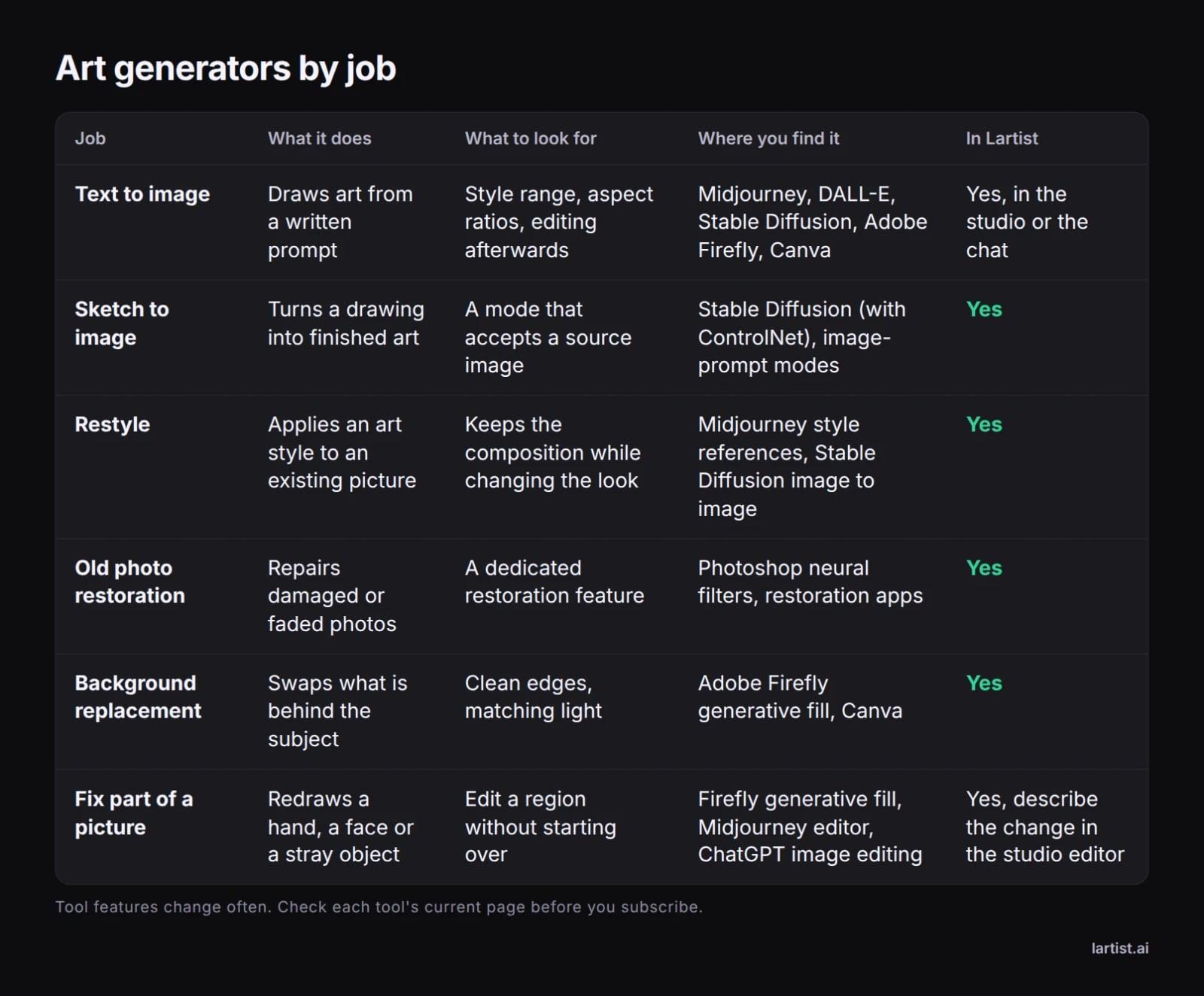
Most tools do text to image. They differ on the other jobs, so start with the ones you actually need.
Text to image: art from words
Midjourney, DALL-E (inside ChatGPT), Stable Diffusion, Adobe Firefly and Canva all start from a prompt. What separates them is the range of styles and how much control you get after the first result. Enrich Labs, for example, lets you pick watercolor, oil painting, anime, pixel art or 3D.
Sketch to image: finish a drawing
Look for a mode that accepts a source image. Picsart says to "use a reference photo or sketch as a starting point with a model that accepts source images." Stable Diffusion users often add ControlNet so the result follows their lines closely.
You don't need to draw well. Draw the main shapes, upload the sketch, then describe the finished look: medium, colors and lighting. Generate, compare the result with your drawing, and change one part of the prompt at a time. Simple shapes with strong contrast give the tool a structure to follow, while faint pencil lines on grey paper give it very little. For the full method, see how to turn a rough doodle into finished art. To go the other way, you can turn photos into pencil drawings.
Restyle: apply an art style to a picture
Restyling keeps the composition of a photo and changes the look. A family portrait can become a watercolor, or a city street can become an anime scene. Picsart's reference image option guides a new piece from your photo, and Lartist has restyle built in.
Old photo restoration
General art tools often leave this job out, so people turn to a dedicated restoration app. Lartist has restoration built in, next to its other image features.
Background replacement
The hard parts are clean edges and light that matches the new scene. This guide shows how to swap a photo background cleanly.
Fixing part of a picture
AI art often gets most of the picture right but misses a hand, a face or a stray object. Some tools let you redo one region, while others make you regenerate the whole image. In Lartist, you describe the change in words in the studio editor.
The takeaway: if you only need a prompt turned into a picture, any of these tools works. If you need two or three of these jobs, pick one tool that does them all, so you don't move files between apps.
How to write an art generator prompt that works
The five-part prompt
Enrich Labs tells you to describe "the subject, setting, lighting, and mood." Picsart adds the medium. Together they make a five-part prompt:
All five together: "A Japanese garden with a wooden bridge over a pond, cherry blossoms, soft morning light, calm mood, watercolor."
Name the medium and the mood
The last word does a lot of work. Change "watercolor" to "oil painting" and you get thicker texture and richer color. Change it to "pixel art" and the same garden becomes a retro game scene. Picsart's advice matches: "Describe the medium and mood in your prompt."
Three mistakes cause most weak results:
- Too vague. "A nice landscape" leaves the tool guessing. Try "rolling green hills at golden hour, a single oak tree, peaceful, oil painting."
- Conflicting styles. "Anime oil photo" pulls in three directions. Choose one medium per prompt.
- No lighting. Results often look flat without it. Add "soft window light," "neon glow" or "stormy dusk."
Refine instead of starting over
Picsart recommends that you "change your prompt or image settings, then compare the next version with your original idea." Change one part at a time, so you know what caused the difference.
Pick the shape before you generate. Enrich Labs offers square, portrait and landscape: square for a social post, portrait for a phone wallpaper, landscape for a blog header.
Art generator ideas to try
Eight prompts you can paste in and adjust:
- "A storybook cottage in a sunlit forest, moss on the roof, warm afternoon light, cozy mood, watercolor"
- "Snowy mountains at sunrise reflected in a still lake, pink sky, peaceful, oil painting"
- "A tall ship on a stormy sea at sunset, crashing waves, dramatic light, epic mood, oil painting"
- "A bronze dragon flying through clouds, sun breaking through, majestic, 3D render"
- "A pink butterfly on red flowers with dew drops, soft morning light, delicate, macro photo style"
- "A lantern-lit alley at night, wet cobblestones, warm glow, mysterious, anime style"
- "A samurai in a misty forest, tall cedars, diffused grey light, quiet tension, ink painting"
- "A saxophonist on a neon street at night, rain reflections, moody, cinematic digital painting"
Then put the art to work. Enrich Labs lists ads, blog posts, product pages and social media. A few more:
- A greeting card: a portrait-shaped watercolor with space for a message.
- A children's story: keep the same style words on every page so the pictures match.
- Styled lettering: a word or name rendered as art, like the melting text above.
To animate a finished picture, learn how to turn a still image into video, or follow a shot-by-shot image to video guide.
Free art generators vs paid: how credit billing works
What the free and paid tiers look like
Enrich Labs offers a Free tier ("no account needed"), plus Pro and Max tiers for "more images, HD quality, and longer descriptions." Picsart publishes a guide to AI credit costs and model pricing. Here is what those two sites show:
How credits are spent
Many paid tools sell credits, and higher quality can cost more. Enrich Labs counts one HD image as 3 images.
Lartist uses credits too. Every feature spends credits, and plans give you credits each month or each year. Credit packs top up your balance when you need more. For video, the credits spent depend on the clip's length and resolution. To compare amounts, see the plans on /pricing.
How to budget before you subscribe
Count what a typical project needs. A greeting card might take 10 drafts plus 3 edits, which is 13 actions. Multiply by the projects you expect in a month, then compare the total with what each plan gives.
Checklist: what to check before you pick an art generator
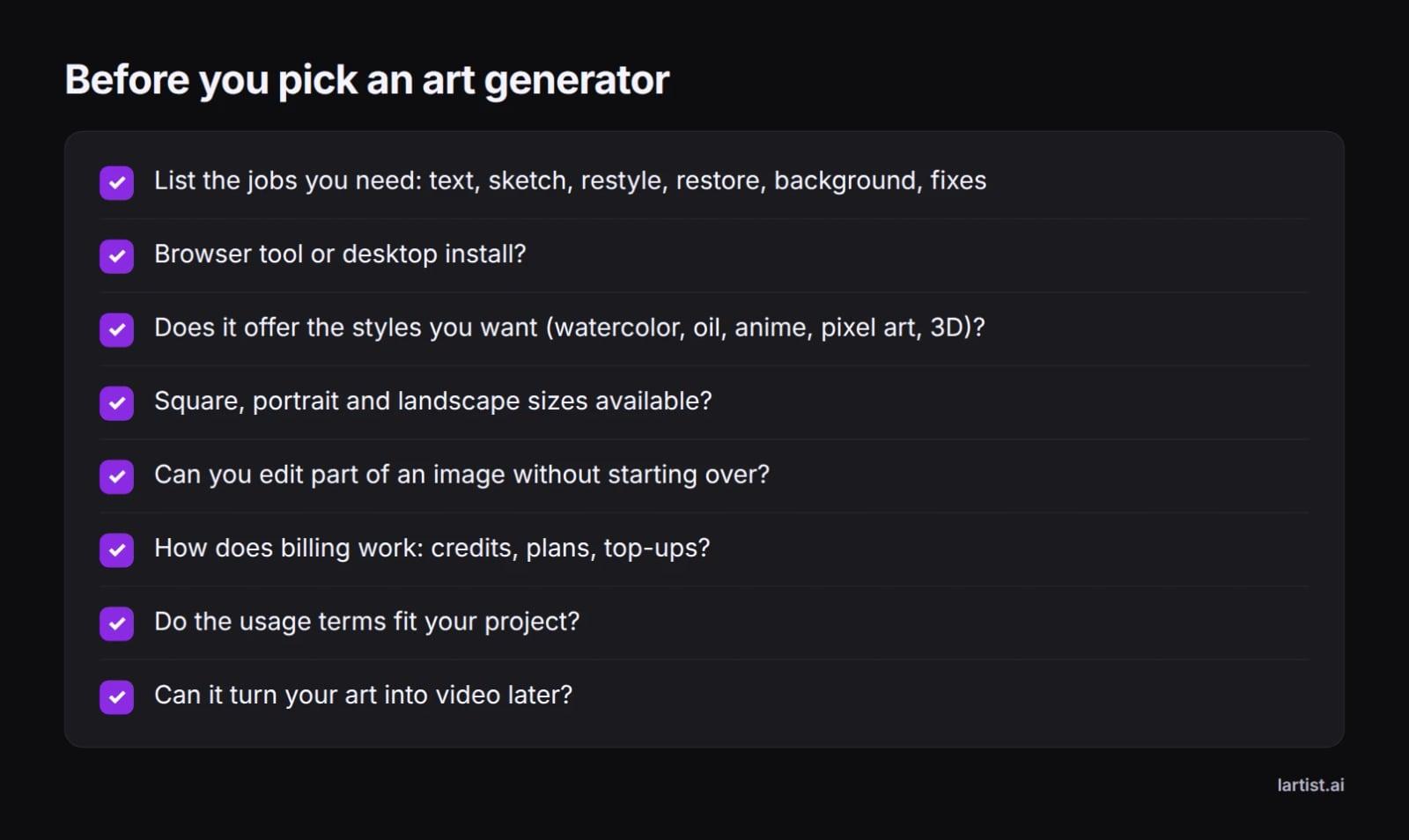
- Which jobs do you need: text, sketch, restyle, restore, background, fixes?
- Does it run in a browser, or do you need to install it?
- Does it offer the styles you want?
- Are square, portrait and landscape sizes available?
- Can you edit part of an image without starting over?
- How does billing work: credits, plans, top-ups?
- Do the usage terms fit your project?
- Can it turn your art into video later?
Usage terms deserve a careful read. Picsart advises you to "check the format, details, and usage requirements for your project." Terms differ from tool to tool. For more, see protecting your work as an AI artist.
FAQ
Is there a free art generator?
Yes, some tools offer a free tier. Enrich Labs, for example, has a Free tier with no account needed, and its paid tiers add more images, HD quality and longer descriptions. See the credit billing section for what each site shows.
What is the best art generator for beginners?
The best art generator for beginners runs in a browser, offers clear style choices and lets you fix mistakes without starting over. Canva, Adobe Firefly and ChatGPT are easy places to start. Lartist also runs in the browser and lets you fix details in words. See the Lartist steps.
How do you write an art generator prompt?
Write it in five parts: subject, setting, lighting, mood, and style or medium. For example: "A Japanese garden with a wooden bridge, cherry blossoms, soft morning light, calm mood, watercolor." Change one part at a time to see its effect. See the prompt section.
Can an art generator turn a sketch or photo into art?
Yes, as long as the tool accepts a source image. Upload your sketch or photo, then describe the finished look: medium, colors and lighting. Stable Diffusion uses ControlNet for this, and Lartist has sketch to image and restyle built in. See sketch to image.
Can I use AI-generated art commercially?
It depends on each tool's terms, so read them before you sell or publish the work. Picsart advises checking "the format, details, and usage requirements for your project." Rules on ownership and commercial use differ between tools. See the checklist and our guide to protecting your work.
Is an art generator the same as an AI art generator?
Yes, in practice. Older art generators made patterns from code, but today nearly every tool called an art generator uses AI to draw from a prompt or a picture. See what an art generator is.